class: center, middle, inverse, title-slide .title[ # Getting Started with R Markdown ] .subtitle[ ## Beginner to intermediate level tutorial for R Markdown ] .author[ ### Dave Bosworth<br>EMRR Branch<br>Collaborative Science and Innovation Section ] .date[ ### Part 1: October 17, 2022<br>Part 2: December 6, 2022 ] --- # Introduction - A little about me -- - About you - Most of you have used R before - Some of you have used R Markdown before - All of you want to learn about using R Markdown to help with communicating your scientific work --- # Tutorial Outline -- R Markdown basics: What is it, and why should I use it? **Activity 1:** Open test file, load data, and run code -- Basic syntax and structure **Activity 2:** Create new document, practice using some syntax options, knit file to html -- Code chunks and inline code **Activity 3:** Inserting and running code -- Code chunk options **Activity 4:** Modify code chunk options -- Basic Pandoc-header options **Activity 5:** Modify YAML options --- # Tutorial Outline - continued Adding and formatting tables **Activity 6:** Tables -- Adding interactive elements: plotly, leaflet, datatable (DT) **Activity 7:** Interactive elements -- Adding tabs **Activity 8:** Tabs -- Open Questions -- GitHub Introduction --- # What is R Markdown? - R-specific file type (.Rmd) that provides a platform for science communication -- - Used to save and execute code just like an R script, but in a notebook format -- - Allows for code and text narrative in the same document --- # How is R Markdown different than an R script? - Results from code and narrative text can be stitched ("knitted") together in the output -- - Allows for many output options including: - HTML, PDF, and Microsoft Word - presentation slides - books and scientific articles - dashboards and shiny applications - websites --- # Why use R Markdown? - Organize your code into "chunks" that can be run individually (notebook format) -- - Save code and narrative text together in one document -- - Share code and results with others - reproducible, transparent, clearly communicated -- - Can be used to create automated reports --- class: inverse, middle # Activity 1 ### Basic Setup - Create new R Project for tutorial - Add files to new R Project: - markdown_format_examples.Rmd - Monthly_Catch_CPUE.csv - rmarkdown_activities_code.R - test_rmarkdown.Rmd - DWR_Logo.png - Open test_rmarkdown.Rmd file - Knit test_rmarkdown.Rmd to make sure it renders correctly --- # R Markdown Document Structure ## Metadata (YAML header) Optional section for rendering options (pandoc) as key: value pairs ```r --- title: "Testing R Markdown" author: "Dave Bosworth" date: '`r format(Sys.Date(), "%B %d, %Y")`' output: html_document --- ``` --- # R Markdown Document Structure ## Narrative Text Narration formatted with markdown - - Plain text - Headers - Text formatting (bold, italic) - Links - Images - Numbered and unordered lists - Code - Equations [R Markdown Reference Guide](https://www.rstudio.com/wp-content/uploads/2015/03/rmarkdown-reference.pdf) --- # R Markdown Document Structure ## Code chunks - Sections of embedded R code within the document - Code is run when R Markdown file is "knitted" with results displayed in the output document ```r plot(pressure) ``` 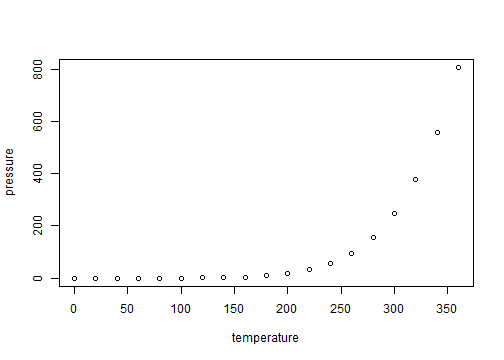<!-- --> --- class: inverse, middle # Activity 2 ### Basic Usage - Create new Rmd document - Practice using some markdown syntax options - see markdown_format_examples.Rmd file for examples - "Knit" Rmd file to html --- # Code within R Markdown ### Code chunks ```r summary(cars) ``` ``` ## speed dist ## Min. : 4.0 Min. : 2.00 ## 1st Qu.:12.0 1st Qu.: 26.00 ## Median :15.0 Median : 36.00 ## Mean :15.4 Mean : 42.98 ## 3rd Qu.:19.0 3rd Qu.: 56.00 ## Max. :25.0 Max. :120.00 ``` -- *** ### Inline code ```r # Today's date is `r Sys.Date()` ``` Today's date is 2022-12-06 --- # File paths and working directories in R Markdown This can be a source of confusion, so its worthwhile taking a moment to cover this: - The default working directory when an .Rmd file is knitted is the .Rmd document directory - The default working directory of an R project is the root directory of the R project - So it's possible to have different working directories when you are running code from code blocks in an .Rmd file versus when you knit the .Rmd file - A useful R package to help with working directories and file paths is the [`here` R package](https://here.r-lib.org/) - The `here::here()` function points to the root directory of an R project regardless of what the current working directory is --- class: inverse, middle # Activity 3 ### Inserting and running code - Add code chunks to Rmd document: - Load R packages - Import Monthly CPUE data - Plot monthly CPUE data - Practice using inline code --- # Code Chunk Options ### message, warning `message = TRUE` ```r library(tidyverse) ``` ``` ## ── Attaching packages ─────────────────────────────────────── tidyverse 1.3.2 ── ## ✔ ggplot2 3.3.6 ✔ purrr 0.3.5 ## ✔ tibble 3.1.8 ✔ dplyr 1.0.10 ## ✔ tidyr 1.2.1 ✔ stringr 1.4.1 ## ✔ readr 2.1.3 ✔ forcats 0.5.2 ## ── Conflicts ────────────────────────────────────────── tidyverse_conflicts() ── ## ✖ dplyr::filter() masks stats::filter() ## ✖ dplyr::lag() masks stats::lag() ``` -- *** `message = FALSE` ```r library(tidyverse) ``` --- # Code Chunk Options ### eval, include, echo - `eval` - default is `eval = TRUE` - if `eval = FALSE`, the code will not run in the code block when "knitted", but the code appears in the output file -- - `include` - default is `include = TRUE` - if `include = FALSE`, the code and results won't appear in output file, but the code is still executed and results can be used by other code chunks -- - `echo` - default is `echo = TRUE` - if `echo = FALSE`, the code won't appear in the output file, but the results are still displayed --- # Code Chunk Options ### Figure output options - `fig.height`, `fig.width` - the height and width in inches for figures created by the code chunk - Default figure dimensions are `fig.width = 7` and `fig.height = 5` -- - `fig.align` - allows for custom alignment of figures in the output file. Can be "left", "right", or "center" - Default alignment is left -- - `fig.cap` - figure caption - `fig.alt` - alt text for a figure --- class: inverse, middle # Activity 4 ### Modify code chunk options - message TRUE vs FALSE - eval = FALSE - include = FALSE - echo = FALSE - Figure output options --- # Basic Pandoc-header options Standard options: title, author, date, output type ```r --- title: "Testing R Markdown" author: "Dave Bosworth" date: "October 17, 2022" output: html_document --- ``` -- Make the date dynamic by using R code in the YAML header: ```r --- title: "Testing R Markdown" author: "Dave Bosworth" date: "`r Sys.Date()`" output: html_document --- ``` --- # Basic Pandoc-header options ## HTML Output Options - Table of Contents .pull-left[ #### Header *** ```r --- output: html_document: toc: true toc_float: collapsed: false --- ``` ] .pull-right[ #### Output *** <img src="images/YAML_TOC.png" width="80%" /> ] --- # Basic Pandoc-header options ## HTML Output Options - Code Folding and Download .pull-left[ #### Header *** ```r --- output: html_document: code_folding: show code_download: true --- ``` ] .pull-right[ #### Output *** <img src="images/YAML_code_folding_download.png" width="40%" /> ] --- # Basic Pandoc-header options ## HTML Output Options - Bootswatch Themes .pull-left[ #### Header *** ```r --- output: html_document: theme: bootswatch: solar --- ``` ] .pull-right[ #### Output *** <img src="images/YAML_solar_theme.png" width="90%" /> ] Use `bslib::bootswatch_themes()` to list available themes --- class: inverse, middle # Activity 5 ### Modify YAML options - Dynamic date - Table of contents - Code folding and download - bootswatch themes --- # Adding and formatting tables ### Basic printing ```r df <- head(mtcars) df ``` ``` ## mpg cyl disp hp drat wt qsec vs am gear carb ## Mazda RX4 21.0 6 160 110 3.90 2.620 16.46 0 1 4 4 ## Mazda RX4 Wag 21.0 6 160 110 3.90 2.875 17.02 0 1 4 4 ## Datsun 710 22.8 4 108 93 3.85 2.320 18.61 1 1 4 1 ## Hornet 4 Drive 21.4 6 258 110 3.08 3.215 19.44 1 0 3 1 ## Hornet Sportabout 18.7 8 360 175 3.15 3.440 17.02 0 0 3 2 ## Valiant 18.1 6 225 105 2.76 3.460 20.22 1 0 3 1 ``` --- # Adding and formatting tables ### Kable ```r library(knitr) kable(df) ``` | | mpg| cyl| disp| hp| drat| wt| qsec| vs| am| gear| carb| |:-----------------|----:|---:|----:|---:|----:|-----:|-----:|--:|--:|----:|----:| |Mazda RX4 | 21.0| 6| 160| 110| 3.90| 2.620| 16.46| 0| 1| 4| 4| |Mazda RX4 Wag | 21.0| 6| 160| 110| 3.90| 2.875| 17.02| 0| 1| 4| 4| |Datsun 710 | 22.8| 4| 108| 93| 3.85| 2.320| 18.61| 1| 1| 4| 1| |Hornet 4 Drive | 21.4| 6| 258| 110| 3.08| 3.215| 19.44| 1| 0| 3| 1| |Hornet Sportabout | 18.7| 8| 360| 175| 3.15| 3.440| 17.02| 0| 0| 3| 2| |Valiant | 18.1| 6| 225| 105| 2.76| 3.460| 20.22| 1| 0| 3| 1| --- # Adding and formatting tables ### Kable styling ```r library(kableExtra) kable(df, format = "html") %>% kable_styling(font_size = 10) ``` <table class="table" style="font-size: 10px; margin-left: auto; margin-right: auto;"> <thead> <tr> <th style="text-align:left;"> </th> <th style="text-align:right;"> mpg </th> <th style="text-align:right;"> cyl </th> <th style="text-align:right;"> disp </th> <th style="text-align:right;"> hp </th> <th style="text-align:right;"> drat </th> <th style="text-align:right;"> wt </th> <th style="text-align:right;"> qsec </th> <th style="text-align:right;"> vs </th> <th style="text-align:right;"> am </th> <th style="text-align:right;"> gear </th> <th style="text-align:right;"> carb </th> </tr> </thead> <tbody> <tr> <td style="text-align:left;"> Mazda RX4 </td> <td style="text-align:right;"> 21.0 </td> <td style="text-align:right;"> 6 </td> <td style="text-align:right;"> 160 </td> <td style="text-align:right;"> 110 </td> <td style="text-align:right;"> 3.90 </td> <td style="text-align:right;"> 2.620 </td> <td style="text-align:right;"> 16.46 </td> <td style="text-align:right;"> 0 </td> <td style="text-align:right;"> 1 </td> <td style="text-align:right;"> 4 </td> <td style="text-align:right;"> 4 </td> </tr> <tr> <td style="text-align:left;"> Mazda RX4 Wag </td> <td style="text-align:right;"> 21.0 </td> <td style="text-align:right;"> 6 </td> <td style="text-align:right;"> 160 </td> <td style="text-align:right;"> 110 </td> <td style="text-align:right;"> 3.90 </td> <td style="text-align:right;"> 2.875 </td> <td style="text-align:right;"> 17.02 </td> <td style="text-align:right;"> 0 </td> <td style="text-align:right;"> 1 </td> <td style="text-align:right;"> 4 </td> <td style="text-align:right;"> 4 </td> </tr> <tr> <td style="text-align:left;"> Datsun 710 </td> <td style="text-align:right;"> 22.8 </td> <td style="text-align:right;"> 4 </td> <td style="text-align:right;"> 108 </td> <td style="text-align:right;"> 93 </td> <td style="text-align:right;"> 3.85 </td> <td style="text-align:right;"> 2.320 </td> <td style="text-align:right;"> 18.61 </td> <td style="text-align:right;"> 1 </td> <td style="text-align:right;"> 1 </td> <td style="text-align:right;"> 4 </td> <td style="text-align:right;"> 1 </td> </tr> <tr> <td style="text-align:left;"> Hornet 4 Drive </td> <td style="text-align:right;"> 21.4 </td> <td style="text-align:right;"> 6 </td> <td style="text-align:right;"> 258 </td> <td style="text-align:right;"> 110 </td> <td style="text-align:right;"> 3.08 </td> <td style="text-align:right;"> 3.215 </td> <td style="text-align:right;"> 19.44 </td> <td style="text-align:right;"> 1 </td> <td style="text-align:right;"> 0 </td> <td style="text-align:right;"> 3 </td> <td style="text-align:right;"> 1 </td> </tr> <tr> <td style="text-align:left;"> Hornet Sportabout </td> <td style="text-align:right;"> 18.7 </td> <td style="text-align:right;"> 8 </td> <td style="text-align:right;"> 360 </td> <td style="text-align:right;"> 175 </td> <td style="text-align:right;"> 3.15 </td> <td style="text-align:right;"> 3.440 </td> <td style="text-align:right;"> 17.02 </td> <td style="text-align:right;"> 0 </td> <td style="text-align:right;"> 0 </td> <td style="text-align:right;"> 3 </td> <td style="text-align:right;"> 2 </td> </tr> <tr> <td style="text-align:left;"> Valiant </td> <td style="text-align:right;"> 18.1 </td> <td style="text-align:right;"> 6 </td> <td style="text-align:right;"> 225 </td> <td style="text-align:right;"> 105 </td> <td style="text-align:right;"> 2.76 </td> <td style="text-align:right;"> 3.460 </td> <td style="text-align:right;"> 20.22 </td> <td style="text-align:right;"> 1 </td> <td style="text-align:right;"> 0 </td> <td style="text-align:right;"> 3 </td> <td style="text-align:right;"> 1 </td> </tr> </tbody> </table> --- class: inverse, middle # Activity 6 ### Tables - Basic table printing - Kables - Basic kable options - kableExtra --- # Adding interactive elements ## datatable (DT) ```r library(DT) datatable(mtcars, options = list(pageLength = 5)) ``` <div id="htmlwidget-aa78aebd93e6f317eeb0" style="width:100%;height:auto;" class="datatables html-widget"></div> <script type="application/json" data-for="htmlwidget-aa78aebd93e6f317eeb0">{"x":{"filter":"none","vertical":false,"data":[["Mazda RX4","Mazda RX4 Wag","Datsun 710","Hornet 4 Drive","Hornet Sportabout","Valiant","Duster 360","Merc 240D","Merc 230","Merc 280","Merc 280C","Merc 450SE","Merc 450SL","Merc 450SLC","Cadillac Fleetwood","Lincoln Continental","Chrysler Imperial","Fiat 128","Honda Civic","Toyota Corolla","Toyota Corona","Dodge Challenger","AMC Javelin","Camaro Z28","Pontiac Firebird","Fiat X1-9","Porsche 914-2","Lotus Europa","Ford Pantera L","Ferrari Dino","Maserati Bora","Volvo 142E"],[21,21,22.8,21.4,18.7,18.1,14.3,24.4,22.8,19.2,17.8,16.4,17.3,15.2,10.4,10.4,14.7,32.4,30.4,33.9,21.5,15.5,15.2,13.3,19.2,27.3,26,30.4,15.8,19.7,15,21.4],[6,6,4,6,8,6,8,4,4,6,6,8,8,8,8,8,8,4,4,4,4,8,8,8,8,4,4,4,8,6,8,4],[160,160,108,258,360,225,360,146.7,140.8,167.6,167.6,275.8,275.8,275.8,472,460,440,78.7,75.7,71.1,120.1,318,304,350,400,79,120.3,95.1,351,145,301,121],[110,110,93,110,175,105,245,62,95,123,123,180,180,180,205,215,230,66,52,65,97,150,150,245,175,66,91,113,264,175,335,109],[3.9,3.9,3.85,3.08,3.15,2.76,3.21,3.69,3.92,3.92,3.92,3.07,3.07,3.07,2.93,3,3.23,4.08,4.93,4.22,3.7,2.76,3.15,3.73,3.08,4.08,4.43,3.77,4.22,3.62,3.54,4.11],[2.62,2.875,2.32,3.215,3.44,3.46,3.57,3.19,3.15,3.44,3.44,4.07,3.73,3.78,5.25,5.424,5.345,2.2,1.615,1.835,2.465,3.52,3.435,3.84,3.845,1.935,2.14,1.513,3.17,2.77,3.57,2.78],[16.46,17.02,18.61,19.44,17.02,20.22,15.84,20,22.9,18.3,18.9,17.4,17.6,18,17.98,17.82,17.42,19.47,18.52,19.9,20.01,16.87,17.3,15.41,17.05,18.9,16.7,16.9,14.5,15.5,14.6,18.6],[0,0,1,1,0,1,0,1,1,1,1,0,0,0,0,0,0,1,1,1,1,0,0,0,0,1,0,1,0,0,0,1],[1,1,1,0,0,0,0,0,0,0,0,0,0,0,0,0,0,1,1,1,0,0,0,0,0,1,1,1,1,1,1,1],[4,4,4,3,3,3,3,4,4,4,4,3,3,3,3,3,3,4,4,4,3,3,3,3,3,4,5,5,5,5,5,4],[4,4,1,1,2,1,4,2,2,4,4,3,3,3,4,4,4,1,2,1,1,2,2,4,2,1,2,2,4,6,8,2]],"container":"<table class=\"display\">\n <thead>\n <tr>\n <th> <\/th>\n <th>mpg<\/th>\n <th>cyl<\/th>\n <th>disp<\/th>\n <th>hp<\/th>\n <th>drat<\/th>\n <th>wt<\/th>\n <th>qsec<\/th>\n <th>vs<\/th>\n <th>am<\/th>\n <th>gear<\/th>\n <th>carb<\/th>\n <\/tr>\n <\/thead>\n<\/table>","options":{"pageLength":5,"columnDefs":[{"className":"dt-right","targets":[1,2,3,4,5,6,7,8,9,10,11]},{"orderable":false,"targets":0}],"order":[],"autoWidth":false,"orderClasses":false,"lengthMenu":[5,10,25,50,100]}},"evals":[],"jsHooks":[]}</script> --- # Adding interactive elements ## plotly .pull-left[ ```r library(plotly) plt <- ggplot( data = mtcars, aes(x = wt, y= mpg, color = cyl) ) + geom_point() ggplotly(plt, width = 500, height = 400) ``` ] .pull-right[ <div id="htmlwidget-eb13373984bc41db67da" style="width:500px;height:400px;" class="plotly html-widget"></div> <script type="application/json" data-for="htmlwidget-eb13373984bc41db67da">{"x":{"data":[{"x":[2.62,2.875,2.32,3.215,3.44,3.46,3.57,3.19,3.15,3.44,3.44,4.07,3.73,3.78,5.25,5.424,5.345,2.2,1.615,1.835,2.465,3.52,3.435,3.84,3.845,1.935,2.14,1.513,3.17,2.77,3.57,2.78],"y":[21,21,22.8,21.4,18.7,18.1,14.3,24.4,22.8,19.2,17.8,16.4,17.3,15.2,10.4,10.4,14.7,32.4,30.4,33.9,21.5,15.5,15.2,13.3,19.2,27.3,26,30.4,15.8,19.7,15,21.4],"text":["wt: 2.620<br />mpg: 21.0<br />cyl: 6","wt: 2.875<br />mpg: 21.0<br />cyl: 6","wt: 2.320<br />mpg: 22.8<br />cyl: 4","wt: 3.215<br />mpg: 21.4<br />cyl: 6","wt: 3.440<br />mpg: 18.7<br />cyl: 8","wt: 3.460<br />mpg: 18.1<br />cyl: 6","wt: 3.570<br />mpg: 14.3<br />cyl: 8","wt: 3.190<br />mpg: 24.4<br />cyl: 4","wt: 3.150<br />mpg: 22.8<br />cyl: 4","wt: 3.440<br />mpg: 19.2<br />cyl: 6","wt: 3.440<br />mpg: 17.8<br />cyl: 6","wt: 4.070<br />mpg: 16.4<br />cyl: 8","wt: 3.730<br />mpg: 17.3<br />cyl: 8","wt: 3.780<br />mpg: 15.2<br />cyl: 8","wt: 5.250<br />mpg: 10.4<br />cyl: 8","wt: 5.424<br />mpg: 10.4<br />cyl: 8","wt: 5.345<br />mpg: 14.7<br />cyl: 8","wt: 2.200<br />mpg: 32.4<br />cyl: 4","wt: 1.615<br />mpg: 30.4<br />cyl: 4","wt: 1.835<br />mpg: 33.9<br />cyl: 4","wt: 2.465<br />mpg: 21.5<br />cyl: 4","wt: 3.520<br />mpg: 15.5<br />cyl: 8","wt: 3.435<br />mpg: 15.2<br />cyl: 8","wt: 3.840<br />mpg: 13.3<br />cyl: 8","wt: 3.845<br />mpg: 19.2<br />cyl: 8","wt: 1.935<br />mpg: 27.3<br />cyl: 4","wt: 2.140<br />mpg: 26.0<br />cyl: 4","wt: 1.513<br />mpg: 30.4<br />cyl: 4","wt: 3.170<br />mpg: 15.8<br />cyl: 8","wt: 2.770<br />mpg: 19.7<br />cyl: 6","wt: 3.570<br />mpg: 15.0<br />cyl: 8","wt: 2.780<br />mpg: 21.4<br />cyl: 4"],"type":"scatter","mode":"markers","marker":{"autocolorscale":false,"color":["rgba(51,106,152,1)","rgba(51,106,152,1)","rgba(19,43,67,1)","rgba(51,106,152,1)","rgba(86,177,247,1)","rgba(51,106,152,1)","rgba(86,177,247,1)","rgba(19,43,67,1)","rgba(19,43,67,1)","rgba(51,106,152,1)","rgba(51,106,152,1)","rgba(86,177,247,1)","rgba(86,177,247,1)","rgba(86,177,247,1)","rgba(86,177,247,1)","rgba(86,177,247,1)","rgba(86,177,247,1)","rgba(19,43,67,1)","rgba(19,43,67,1)","rgba(19,43,67,1)","rgba(19,43,67,1)","rgba(86,177,247,1)","rgba(86,177,247,1)","rgba(86,177,247,1)","rgba(86,177,247,1)","rgba(19,43,67,1)","rgba(19,43,67,1)","rgba(19,43,67,1)","rgba(86,177,247,1)","rgba(51,106,152,1)","rgba(86,177,247,1)","rgba(19,43,67,1)"],"opacity":1,"size":5.66929133858268,"symbol":"circle","line":{"width":1.88976377952756,"color":["rgba(51,106,152,1)","rgba(51,106,152,1)","rgba(19,43,67,1)","rgba(51,106,152,1)","rgba(86,177,247,1)","rgba(51,106,152,1)","rgba(86,177,247,1)","rgba(19,43,67,1)","rgba(19,43,67,1)","rgba(51,106,152,1)","rgba(51,106,152,1)","rgba(86,177,247,1)","rgba(86,177,247,1)","rgba(86,177,247,1)","rgba(86,177,247,1)","rgba(86,177,247,1)","rgba(86,177,247,1)","rgba(19,43,67,1)","rgba(19,43,67,1)","rgba(19,43,67,1)","rgba(19,43,67,1)","rgba(86,177,247,1)","rgba(86,177,247,1)","rgba(86,177,247,1)","rgba(86,177,247,1)","rgba(19,43,67,1)","rgba(19,43,67,1)","rgba(19,43,67,1)","rgba(86,177,247,1)","rgba(51,106,152,1)","rgba(86,177,247,1)","rgba(19,43,67,1)"]}},"hoveron":"points","showlegend":false,"xaxis":"x","yaxis":"y","hoverinfo":"text","frame":null},{"x":[2],"y":[10],"name":"99_531d9fbdcf7888a300c767b09a2d0955","type":"scatter","mode":"markers","opacity":0,"hoverinfo":"skip","showlegend":false,"marker":{"color":[0,1],"colorscale":[[0,"#132B43"],[0.00334448160535117,"#132B44"],[0.00668896321070234,"#132C44"],[0.0100334448160535,"#142C45"],[0.0133779264214047,"#142D45"],[0.0167224080267558,"#142D46"],[0.020066889632107,"#142D46"],[0.0234113712374582,"#142E47"],[0.0267558528428093,"#152E47"],[0.0301003344481605,"#152F48"],[0.0334448160535117,"#152F48"],[0.0367892976588629,"#152F49"],[0.040133779264214,"#153049"],[0.0434782608695652,"#16304A"],[0.0468227424749164,"#16304A"],[0.0501672240802675,"#16314B"],[0.0535117056856187,"#16314B"],[0.0568561872909699,"#16324C"],[0.060200668896321,"#17324D"],[0.0635451505016722,"#17324D"],[0.0668896321070234,"#17334E"],[0.0702341137123745,"#17334E"],[0.0735785953177257,"#17344F"],[0.0769230769230769,"#18344F"],[0.080267558528428,"#183450"],[0.0836120401337792,"#183550"],[0.0869565217391304,"#183551"],[0.0903010033444815,"#183651"],[0.0936454849498327,"#193652"],[0.0969899665551839,"#193652"],[0.100334448160535,"#193753"],[0.103678929765886,"#193754"],[0.107023411371237,"#193854"],[0.110367892976589,"#1A3855"],[0.11371237458194,"#1A3955"],[0.117056856187291,"#1A3956"],[0.120401337792642,"#1A3956"],[0.123745819397993,"#1A3A57"],[0.127090301003344,"#1B3A57"],[0.130434782608696,"#1B3B58"],[0.133779264214047,"#1B3B59"],[0.137123745819398,"#1B3B59"],[0.140468227424749,"#1C3C5A"],[0.1438127090301,"#1C3C5A"],[0.147157190635451,"#1C3D5B"],[0.150501672240803,"#1C3D5B"],[0.153846153846154,"#1C3D5C"],[0.157190635451505,"#1D3E5C"],[0.160535117056856,"#1D3E5D"],[0.163879598662207,"#1D3F5D"],[0.167224080267558,"#1D3F5E"],[0.17056856187291,"#1D3F5F"],[0.173913043478261,"#1E405F"],[0.177257525083612,"#1E4060"],[0.180602006688963,"#1E4160"],[0.183946488294314,"#1E4161"],[0.187290969899665,"#1E4261"],[0.190635451505017,"#1F4262"],[0.193979933110368,"#1F4263"],[0.197324414715719,"#1F4363"],[0.20066889632107,"#1F4364"],[0.204013377926421,"#1F4464"],[0.207357859531773,"#204465"],[0.210702341137124,"#204465"],[0.214046822742475,"#204566"],[0.217391304347826,"#204566"],[0.220735785953177,"#214667"],[0.224080267558529,"#214668"],[0.22742474916388,"#214768"],[0.230769230769231,"#214769"],[0.234113712374582,"#214769"],[0.237458193979933,"#22486A"],[0.240802675585284,"#22486A"],[0.244147157190636,"#22496B"],[0.247491638795987,"#22496C"],[0.250836120401338,"#224A6C"],[0.254180602006689,"#234A6D"],[0.25752508361204,"#234A6D"],[0.260869565217391,"#234B6E"],[0.264214046822743,"#234B6E"],[0.267558528428094,"#244C6F"],[0.270903010033445,"#244C70"],[0.274247491638796,"#244C70"],[0.277591973244147,"#244D71"],[0.280936454849498,"#244D71"],[0.28428093645485,"#254E72"],[0.287625418060201,"#254E72"],[0.290969899665552,"#254F73"],[0.294314381270903,"#254F74"],[0.297658862876254,"#254F74"],[0.301003344481605,"#265075"],[0.304347826086957,"#265075"],[0.307692307692308,"#265176"],[0.311036789297659,"#265176"],[0.31438127090301,"#275277"],[0.317725752508361,"#275278"],[0.321070234113712,"#275278"],[0.324414715719064,"#275379"],[0.327759197324415,"#275379"],[0.331103678929766,"#28547A"],[0.334448160535117,"#28547B"],[0.337792642140468,"#28557B"],[0.341137123745819,"#28557C"],[0.344481605351171,"#28567C"],[0.347826086956522,"#29567D"],[0.351170568561873,"#29567D"],[0.354515050167224,"#29577E"],[0.357859531772575,"#29577F"],[0.361204013377926,"#2A587F"],[0.364548494983278,"#2A5880"],[0.367892976588629,"#2A5980"],[0.37123745819398,"#2A5981"],[0.374581939799331,"#2A5982"],[0.377926421404682,"#2B5A82"],[0.381270903010033,"#2B5A83"],[0.384615384615385,"#2B5B83"],[0.387959866220736,"#2B5B84"],[0.391304347826087,"#2C5C85"],[0.394648829431438,"#2C5C85"],[0.397993311036789,"#2C5D86"],[0.40133779264214,"#2C5D86"],[0.404682274247492,"#2C5D87"],[0.408026755852843,"#2D5E87"],[0.411371237458194,"#2D5E88"],[0.414715719063545,"#2D5F89"],[0.418060200668896,"#2D5F89"],[0.421404682274247,"#2E608A"],[0.424749163879599,"#2E608A"],[0.42809364548495,"#2E618B"],[0.431438127090301,"#2E618C"],[0.434782608695652,"#2E618C"],[0.438127090301003,"#2F628D"],[0.441471571906354,"#2F628D"],[0.444816053511706,"#2F638E"],[0.448160535117057,"#2F638F"],[0.451505016722408,"#30648F"],[0.454849498327759,"#306490"],[0.45819397993311,"#306590"],[0.461538461538461,"#306591"],[0.464882943143813,"#306592"],[0.468227424749164,"#316692"],[0.471571906354515,"#316693"],[0.474916387959866,"#316793"],[0.478260869565217,"#316794"],[0.481605351170569,"#326895"],[0.48494983277592,"#326895"],[0.488294314381271,"#326996"],[0.491638795986622,"#326996"],[0.494983277591973,"#326997"],[0.498327759197324,"#336A98"],[0.501672240802676,"#336A98"],[0.505016722408027,"#336B99"],[0.508361204013378,"#336B99"],[0.511705685618729,"#346C9A"],[0.51505016722408,"#346C9B"],[0.518394648829431,"#346D9B"],[0.521739130434783,"#346D9C"],[0.525083612040134,"#346E9D"],[0.528428093645485,"#356E9D"],[0.531772575250836,"#356E9E"],[0.535117056856187,"#356F9E"],[0.538461538461538,"#356F9F"],[0.54180602006689,"#3670A0"],[0.545150501672241,"#3670A0"],[0.548494983277592,"#3671A1"],[0.551839464882943,"#3671A1"],[0.555183946488294,"#3772A2"],[0.558528428093645,"#3772A3"],[0.561872909698997,"#3773A3"],[0.565217391304348,"#3773A4"],[0.568561872909699,"#3773A4"],[0.57190635451505,"#3874A5"],[0.575250836120401,"#3874A6"],[0.578595317725752,"#3875A6"],[0.581939799331104,"#3875A7"],[0.585284280936455,"#3976A8"],[0.588628762541806,"#3976A8"],[0.591973244147157,"#3977A9"],[0.595317725752508,"#3977A9"],[0.598662207357859,"#3978AA"],[0.602006688963211,"#3A78AB"],[0.605351170568562,"#3A79AB"],[0.608695652173913,"#3A79AC"],[0.612040133779264,"#3A79AC"],[0.615384615384615,"#3B7AAD"],[0.618729096989967,"#3B7AAE"],[0.622073578595318,"#3B7BAE"],[0.625418060200669,"#3B7BAF"],[0.62876254180602,"#3C7CB0"],[0.632107023411371,"#3C7CB0"],[0.635451505016722,"#3C7DB1"],[0.638795986622074,"#3C7DB1"],[0.642140468227425,"#3C7EB2"],[0.645484949832776,"#3D7EB3"],[0.648829431438127,"#3D7FB3"],[0.652173913043478,"#3D7FB4"],[0.655518394648829,"#3D7FB5"],[0.658862876254181,"#3E80B5"],[0.662207357859532,"#3E80B6"],[0.665551839464883,"#3E81B6"],[0.668896321070234,"#3E81B7"],[0.672240802675585,"#3F82B8"],[0.675585284280936,"#3F82B8"],[0.678929765886288,"#3F83B9"],[0.682274247491639,"#3F83BA"],[0.68561872909699,"#4084BA"],[0.688963210702341,"#4084BB"],[0.692307692307692,"#4085BB"],[0.695652173913043,"#4085BC"],[0.698996655518395,"#4086BD"],[0.702341137123746,"#4186BD"],[0.705685618729097,"#4186BE"],[0.709030100334448,"#4187BF"],[0.712374581939799,"#4187BF"],[0.71571906354515,"#4288C0"],[0.719063545150502,"#4288C1"],[0.722408026755853,"#4289C1"],[0.725752508361204,"#4289C2"],[0.729096989966555,"#438AC2"],[0.732441471571906,"#438AC3"],[0.735785953177257,"#438BC4"],[0.739130434782609,"#438BC4"],[0.74247491638796,"#438CC5"],[0.745819397993311,"#448CC6"],[0.749163879598662,"#448DC6"],[0.752508361204013,"#448DC7"],[0.755852842809364,"#448EC8"],[0.759197324414716,"#458EC8"],[0.762541806020067,"#458FC9"],[0.765886287625418,"#458FC9"],[0.769230769230769,"#458FCA"],[0.772575250836121,"#4690CB"],[0.775919732441471,"#4690CB"],[0.779264214046823,"#4691CC"],[0.782608695652174,"#4691CD"],[0.785953177257525,"#4792CD"],[0.789297658862876,"#4792CE"],[0.792642140468228,"#4793CF"],[0.795986622073579,"#4793CF"],[0.79933110367893,"#4894D0"],[0.802675585284281,"#4894D0"],[0.806020066889632,"#4895D1"],[0.809364548494983,"#4895D2"],[0.812709030100335,"#4896D2"],[0.816053511705686,"#4996D3"],[0.819397993311037,"#4997D4"],[0.822742474916388,"#4997D4"],[0.826086956521739,"#4998D5"],[0.82943143812709,"#4A98D6"],[0.832775919732442,"#4A99D6"],[0.836120401337793,"#4A99D7"],[0.839464882943144,"#4A9AD8"],[0.842809364548495,"#4B9AD8"],[0.846153846153846,"#4B9BD9"],[0.849498327759197,"#4B9BDA"],[0.852842809364549,"#4B9BDA"],[0.8561872909699,"#4C9CDB"],[0.859531772575251,"#4C9CDB"],[0.862876254180602,"#4C9DDC"],[0.866220735785953,"#4C9DDD"],[0.869565217391304,"#4D9EDD"],[0.872909698996656,"#4D9EDE"],[0.876254180602007,"#4D9FDF"],[0.879598662207358,"#4D9FDF"],[0.882943143812709,"#4DA0E0"],[0.88628762541806,"#4EA0E1"],[0.889632107023411,"#4EA1E1"],[0.892976588628763,"#4EA1E2"],[0.896321070234114,"#4EA2E3"],[0.899665551839465,"#4FA2E3"],[0.903010033444816,"#4FA3E4"],[0.906354515050167,"#4FA3E5"],[0.909698996655518,"#4FA4E5"],[0.91304347826087,"#50A4E6"],[0.916387959866221,"#50A5E7"],[0.919732441471572,"#50A5E7"],[0.923076923076923,"#50A6E8"],[0.926421404682274,"#51A6E8"],[0.929765886287625,"#51A7E9"],[0.933110367892977,"#51A7EA"],[0.936454849498328,"#51A8EA"],[0.939799331103679,"#52A8EB"],[0.94314381270903,"#52A9EC"],[0.946488294314381,"#52A9EC"],[0.949832775919732,"#52AAED"],[0.953177257525084,"#53AAEE"],[0.956521739130435,"#53ABEE"],[0.959866220735786,"#53ABEF"],[0.963210702341137,"#53ACF0"],[0.966555183946488,"#54ACF0"],[0.969899665551839,"#54ADF1"],[0.973244147157191,"#54ADF2"],[0.976588628762542,"#54AEF2"],[0.979933110367893,"#55AEF3"],[0.983277591973244,"#55AFF4"],[0.986622073578595,"#55AFF4"],[0.989966555183946,"#55B0F5"],[0.993311036789298,"#56B0F6"],[0.996655518394649,"#56B1F6"],[1,"#56B1F7"]],"colorbar":{"bgcolor":"rgba(255,255,255,1)","bordercolor":"transparent","borderwidth":1.88976377952756,"thickness":23.04,"title":"cyl","titlefont":{"color":"rgba(0,0,0,1)","family":"","size":14.6118721461187},"tickmode":"array","ticktext":["4","5","6","7","8"],"tickvals":[0,0.25,0.5,0.75,1],"tickfont":{"color":"rgba(0,0,0,1)","family":"","size":11.689497716895},"ticklen":2,"len":0.5}},"xaxis":"x","yaxis":"y","frame":null}],"layout":{"margin":{"t":25.1324200913242,"r":7.30593607305936,"b":39.0867579908676,"l":37.2602739726027},"plot_bgcolor":"rgba(235,235,235,1)","paper_bgcolor":"rgba(255,255,255,1)","font":{"color":"rgba(0,0,0,1)","family":"","size":14.6118721461187},"xaxis":{"domain":[0,1],"automargin":true,"type":"linear","autorange":false,"range":[1.31745,5.61955],"tickmode":"array","ticktext":["2","3","4","5"],"tickvals":[2,3,4,5],"categoryorder":"array","categoryarray":["2","3","4","5"],"nticks":null,"ticks":"outside","tickcolor":"rgba(51,51,51,1)","ticklen":3.65296803652968,"tickwidth":0.66417600664176,"showticklabels":true,"tickfont":{"color":"rgba(77,77,77,1)","family":"","size":11.689497716895},"tickangle":-0,"showline":false,"linecolor":null,"linewidth":0,"showgrid":true,"gridcolor":"rgba(255,255,255,1)","gridwidth":0.66417600664176,"zeroline":false,"anchor":"y","title":{"text":"wt","font":{"color":"rgba(0,0,0,1)","family":"","size":14.6118721461187}},"hoverformat":".2f"},"yaxis":{"domain":[0,1],"automargin":true,"type":"linear","autorange":false,"range":[9.225,35.075],"tickmode":"array","ticktext":["10","15","20","25","30","35"],"tickvals":[10,15,20,25,30,35],"categoryorder":"array","categoryarray":["10","15","20","25","30","35"],"nticks":null,"ticks":"outside","tickcolor":"rgba(51,51,51,1)","ticklen":3.65296803652968,"tickwidth":0.66417600664176,"showticklabels":true,"tickfont":{"color":"rgba(77,77,77,1)","family":"","size":11.689497716895},"tickangle":-0,"showline":false,"linecolor":null,"linewidth":0,"showgrid":true,"gridcolor":"rgba(255,255,255,1)","gridwidth":0.66417600664176,"zeroline":false,"anchor":"x","title":{"text":"mpg","font":{"color":"rgba(0,0,0,1)","family":"","size":14.6118721461187}},"hoverformat":".2f"},"shapes":[{"type":"rect","fillcolor":null,"line":{"color":null,"width":0,"linetype":[]},"yref":"paper","xref":"paper","x0":0,"x1":1,"y0":0,"y1":1}],"showlegend":false,"legend":{"bgcolor":"rgba(255,255,255,1)","bordercolor":"transparent","borderwidth":1.88976377952756,"font":{"color":"rgba(0,0,0,1)","family":"","size":11.689497716895},"title":{"text":"","font":{"color":"rgba(0,0,0,1)","family":"","size":14.6118721461187}}},"hovermode":"closest","width":500,"height":400,"barmode":"relative"},"config":{"doubleClick":"reset","modeBarButtonsToAdd":["hoverclosest","hovercompare"],"showSendToCloud":false},"source":"A","attrs":{"203c43171211":{"x":{},"y":{},"colour":{},"type":"scatter"}},"cur_data":"203c43171211","visdat":{"203c43171211":["function (y) ","x"]},"highlight":{"on":"plotly_click","persistent":false,"dynamic":false,"selectize":false,"opacityDim":0.2,"selected":{"opacity":1},"debounce":0},"shinyEvents":["plotly_hover","plotly_click","plotly_selected","plotly_relayout","plotly_brushed","plotly_brushing","plotly_clickannotation","plotly_doubleclick","plotly_deselect","plotly_afterplot","plotly_sunburstclick"],"base_url":"https://plot.ly"},"evals":[],"jsHooks":[]}</script> ] --- # Adding interactive elements ## leaflet .pull-left[ ```r library(leaflet) leaflet(width = 400, height = 400) %>% addTiles() %>% addMarkers( lng = 174.768, lat = -36.852, popup = "The birthplace of R" ) ``` ] .pull-right[ <div id="htmlwidget-8b70c18931451b48c982" style="width:400px;height:400px;" class="leaflet html-widget"></div> <script type="application/json" data-for="htmlwidget-8b70c18931451b48c982">{"x":{"options":{"crs":{"crsClass":"L.CRS.EPSG3857","code":null,"proj4def":null,"projectedBounds":null,"options":{}}},"calls":[{"method":"addTiles","args":["https://{s}.tile.openstreetmap.org/{z}/{x}/{y}.png",null,null,{"minZoom":0,"maxZoom":18,"tileSize":256,"subdomains":"abc","errorTileUrl":"","tms":false,"noWrap":false,"zoomOffset":0,"zoomReverse":false,"opacity":1,"zIndex":1,"detectRetina":false,"attribution":"© <a href=\"https://openstreetmap.org\">OpenStreetMap<\/a> contributors, <a href=\"https://creativecommons.org/licenses/by-sa/2.0/\">CC-BY-SA<\/a>"}]},{"method":"addMarkers","args":[-36.852,174.768,null,null,null,{"interactive":true,"draggable":false,"keyboard":true,"title":"","alt":"","zIndexOffset":0,"opacity":1,"riseOnHover":false,"riseOffset":250},"The birthplace of R",null,null,null,null,{"interactive":false,"permanent":false,"direction":"auto","opacity":1,"offset":[0,0],"textsize":"10px","textOnly":false,"className":"","sticky":true},null]}],"limits":{"lat":[-36.852,-36.852],"lng":[174.768,174.768]}},"evals":[],"jsHooks":[]}</script> ] --- class: inverse, middle # Activity 7 ### Interactive elements - Datatables - Datatable options - Plotly - Leaflet maps - Leaflet map options --- # Adding tabs <img src="images/Tabset_example.png" width="70%" /> --- class: inverse, middle # Activity 8 ### Tabs - Adding tabs - Format appearance and behavior of tabs --- # Open Questions??? --- # GitHub Introduction - Participants poll -- - Tutorial will be held through MS Teams - **Date and Time to be Announced**