Code
# My First R script
#

24/2R is a flexible coding language that anyone can learn
I am taking a lot of this tutorial from the e-book “Hands on Programming in R” https://rstudio-education.github.io/hopr/
We’re setting this up as an online web-book where there are chucks of code that you can copy and paste into your console by clicking on the clipboard icon in the top right. For the exercises, we have hidden the answers but you can check yourself once you have tried it.
Isn’t R a language?
You may hear me speak of R in the third person. For example, I might say, “Tell R to do this” or “Tell R to do that”, but of course R can’t do anything; it is just a language. This way of speaking is shorthand for saying, “Tell your computer to do this by writing a command in the R language at the command line of your RStudio console.” Your computer, and not R, does the actual work.
Is this shorthand confusing and slightly lazy to use? Yes. Do a lot of people use it? Everyone I know–probably because it is so convenient.
Wait… am I using R or Rstudio?
R is a language. You can use a console by itself to run code, but it is a lot easier to use a console together with a text editor, file explorer, image viewer, and other tools. That’s where RStudio comes in.
Rstudio is an integrated development environment that includes a debugger, version control, help section, and lots of other nifty tools that make coding easier. (you’ll get a tour in a minute)
There is a very steep learning curve to R (or any coding language). You are likely to get frustrated when code doesn’t work. The first things you learn are probably things you could do easier and faster in Excel. So why bother?
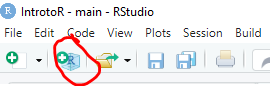
OK, everyone, open Rstudio. Click on the new project button. A ‘project’ is basically an organized directory that has all of the data, code, and outputs for a particular work product. It’s especially useful once you start working on multiple files and reading in and out data and stuff, so it’s good to get in the habit of always working in a project. For now, choose a location for a folder that will contain all the work you want to do for this class. This folder is your “working directory”, meaning, the default location for loading inputs and writing outputs, scripts, etc.
Now let’s take a look at your RStudio Screen. Go over the different panes and how to navigate and customize.
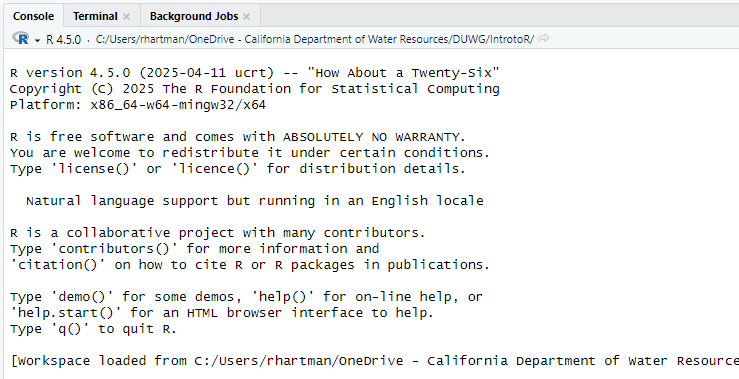
This should be in your console:
Now go to File –> new file –> R script.
This will be your first R script. You will type things in the script, then transfer them to the console to run them. You can technically type directly into the console, but then you can’t save them, and that’s bad, so get into the habit of writing everything in your script.
From your script, you can hit the ‘Run’ icon in the top right corner to move a line of code from your script to your console.
You can also hit ctrl+enter to do the same thing.
Highlight multiple lines of code to run more than one thing at once.
The “source” button at the top of the script runs the entire script at once without printing all the output. This is useful of you have a script that is mostly setup stuff or homemade functions.
You will notice that in the console all the lines of code you run start with a >. If you have multiple lines of code strung together, there will be + at the start of the new lines until the end of the code. In an R script, you can break your code up into lines to make it all fit on your screen, so long as the parentheses line up.
The output does not start with a carrot or plus sign.
Now your turn!
24/2 in your scriptClick below for the answer when you are done!
# My First R script
#
24/2
Comments
Another good habit to start early is commenting your code. Comments are indicated by hashtags
#. They are parts of your script that don’t do anything, just give you information about what you intended in your code and why you did what you did. RStudio helpfully color-codes them for you.Comments are extra useful if you are sharing code with someone else. And remember “Someone else” might just be you in the future!
For example: