3 Packages and importing data
3.1 Packages
The real benefit of R is that it is open-source, and tons and tons of people have developed ‘expansion packs’ for R. You can go a very long way with just the built-in R functions, but many people have developed slightly different ways of doing things, easier methods, and more advanced things.
Let’s go over to the R website and talk packages - https://www.r-project.org/
We had everyone install the tidyverse packages before getting started. This is actually a set of packages that all work together to make code a little more intuitive. Let’s go over to the “Packages” tab in RStudio and check them out.
dplyr - data manipulation
lubridate - dates and times
ggplot2 - graphics
tidyr - more data manipulation
forcats - working with categorical variables (factors)
readr - importing data from spreadsheets
stringr - working with character strings
tibble - nicer checking and formatting for tables and data frames
You’ll notice that besides the tidyverse, there are a number of other packages in this tab that you didn’t install - they came along with base R.
When you want to install or update packages, you can use the install.packages command, or the GUI in RStudio. This command reaches out to the CRAN website and downloads the code files, saving them to your “library”. You only have to do this once. However, at the start of every R session you will need to load the package into your environment using the library command. This is usually done at the top of your script.
Let’s check out the documentation
#check out documentation
?readr
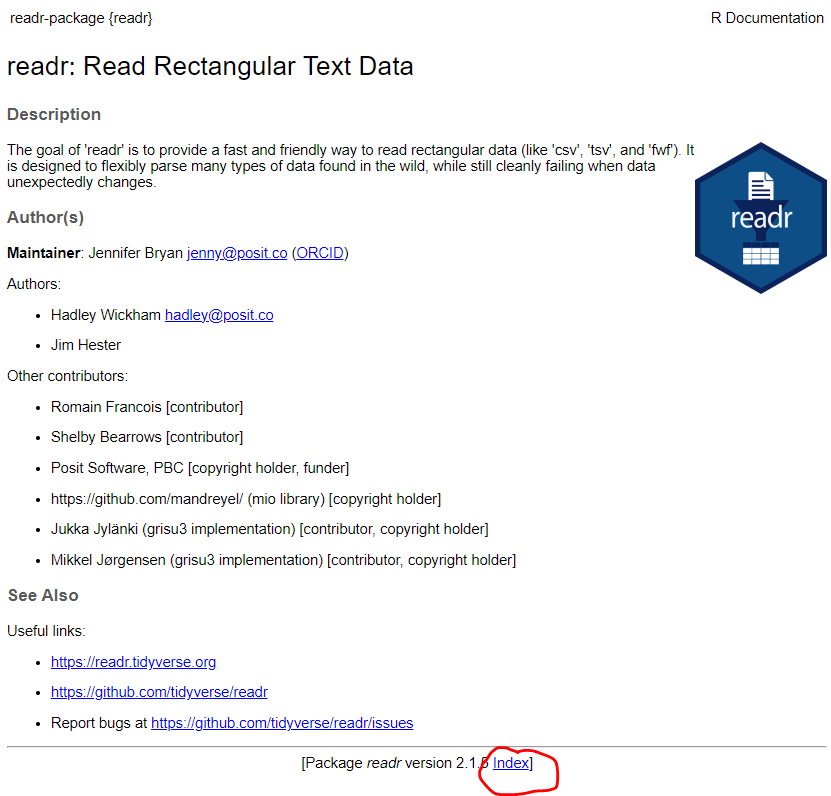
Click on the index, then one of the vignettes - those are very useful!
3.1.1 Package conflicts
After you’ve loaded a package, you might get some warnings about conflicted packages. These are different functions with the same name in two different packages. Mostly it isn’t a problem, but sometimes you’ll have to specify which function you mean.
Specify which you want with package::function
If you really want the base version instead of the one from a package, you can use the exclude argument.
3.1.2 Exercise
Let’s try using a function that is in a package. glimpse is an simple function that tells you about a data frame. R has a number of built-in data sets that you can play with, and one is mtcars. It’s just a table of different makes and models of cars and their stats.
#The View function is built in.
View(mtcars)
#the "glimpse" function is in the dplyr package. It's part of the tidyverse set of packages. You should have installed it already
glimpse(mtcars)Error in glimpse(mtcars): could not find function "glimpse"Even though you installed it, you still need to load it into your workspace using the library command.
Rows: 32
Columns: 11
$ mpg  <dbl> 21.0, 21.0, 22.8, 21.4, 18.7, 18.1, 14.3, 24.4, 22.8, 19.2, 17.8,…
$ cyl  <dbl> 6, 6, 4, 6, 8, 6, 8, 4, 4, 6, 6, 8, 8, 8, 8, 8, 8, 4, 4, 4, 4, 8,…
$ disp <dbl> 160.0, 160.0, 108.0, 258.0, 360.0, 225.0, 360.0, 146.7, 140.8, 16…
$ hp   <dbl> 110, 110, 93, 110, 175, 105, 245, 62, 95, 123, 123, 180, 180, 180…
$ drat <dbl> 3.90, 3.90, 3.85, 3.08, 3.15, 2.76, 3.21, 3.69, 3.92, 3.92, 3.92,…
$ wt   <dbl> 2.620, 2.875, 2.320, 3.215, 3.440, 3.460, 3.570, 3.190, 3.150, 3.…
$ qsec <dbl> 16.46, 17.02, 18.61, 19.44, 17.02, 20.22, 15.84, 20.00, 22.90, 18…
$ vs   <dbl> 0, 0, 1, 1, 0, 1, 0, 1, 1, 1, 1, 0, 0, 0, 0, 0, 0, 1, 1, 1, 1, 0,…
$ am   <dbl> 1, 1, 1, 0, 0, 0, 0, 0, 0, 0, 0, 0, 0, 0, 0, 0, 0, 1, 1, 1, 0, 0,…
$ gear <dbl> 4, 4, 4, 3, 3, 3, 3, 4, 4, 4, 4, 3, 3, 3, 3, 3, 3, 4, 4, 4, 3, 3,…
$ carb <dbl> 4, 4, 1, 1, 2, 1, 4, 2, 2, 4, 4, 3, 3, 3, 4, 4, 4, 1, 2, 1, 1, 2,…
3.1.3 Exercise
Now go to the documentation for dplyr and look through the “Introduction to dplyr” vignette. Take 10 mins and see if you try out some of the examples. We’ll be using a lot of these dplyr functions later in the class.
?dplyr

vignette("dplyr")
3.2 Importing and Exporting data
Next, we must import our data.
The common function for this is read_csv from readr (which is nested in tidyverse). For our demonstrations, we will use the WQ_P8D7.csv file housed in the data folder.
When importing data, we must specify the filepath where it’s housed. There are multiple ways to do this. We could hard-code in the path, which is called the absolute path:
df_wq <- read_csv('C:/R/IntrotoR/data/WQ_P8D7.csv')Error: 'C:/R/IntrotoR/data/WQ_P8D7.csv' does not exist.However, this code is very specific and will break when used on other computers.
If we instead house data in a Project, we can make use of relative filepaths. These are ideal because anyone who uses the Project can run the code:
df_wq <- read_csv('data/WQ_P8D7.csv')If you received an error here, this is probably because you either didn’t save the file in the right folder, or you are not working in a project.
Here, we used the read_csv function, which takes .csv files by default. But what is a csv?
“csv” stands for “comma separated values”, where the comma is called a delimiter; it tells the code where to separate the data cells. If you want to use a different delimiter, you can use the read_delim function (also from the readr package):
read_delim('data/delim_ex.txt', delim = '|') # data separated by |# A tibble: 2 × 4
col headers are first
<chr> <chr> <chr> <chr>
1 here is an example
2 of a different delimiterfor tab delimited data (a fairly frequent format), there’s read_tsv:
read_tsv('data/tab_ex.tsv')# A tibble: 2 × 4
col headers are first
<chr> <chr> <chr> <chr>
1 here is an example
2 of a different delimiterExcel files (.xlsx) are unique because they’re not solely defined by their delimiters, which allows for more complicated file formatting. To import these, we use read_excel from the readxl package:
library(readxl)

read_excel('data/excel_ex.xlsx', sheet = 'Sheet1') # read the first sheet (by name)
# A tibble: 2 × 4
col headers are first
<chr> <chr> <chr> <chr>
1 here is an example
2 of an excel file read_excel('data/excel_ex.xlsx', sheet = 2) # read the second sheet (by number)# A tibble: 2 × 4
col headers are first
<chr> <chr> <chr> <chr>
1 here is an example
2 of excel sheet 2 We now have a data frame object called df_wq. We can use head to see what the first few rows of the data frame look like:
head(df_wq)# A tibble: 6 × 20
Station Date Chla Pheophytin TotAlkalinity DissAmmonia
<chr> <date> <dbl> <dbl> <dbl> <dbl>
1 P8 2020-01-16 0.64 0.5 98 0.15
2 D7 2020-01-22 0.67 0.87 82 0.21
3 P8 2020-02-14 1.46 0.69 81 0.25
4 D7 2020-02-20 2.15 0.5 86 0.14
5 P8 2020-03-03 1.4 0.56 80 0.11
6 D7 2020-03-06 1.89 1.13 93 0.22
# ℹ 14 more variables: DissNitrateNitrite <dbl>, DOC <dbl>, TOC <dbl>,
# DON <dbl>, TotPhos <dbl>, DissOrthophos <dbl>, TDS <dbl>, TSS <dbl>,
# TKN <dbl>, Depth <dbl>, Secchi <dbl>, Microcystis <dbl>,
# SpCndSurface <dbl>, WTSurface <dbl>And glimpse to see information about the columns:
glimpse(df_wq)Rows: 62
Columns: 20
$ Station <chr> "P8", "D7", "P8", "D7", "P8", "D7", "P8", "D7", "P8…
$ Date <date> 2020-01-16, 2020-01-22, 2020-02-14, 2020-02-20, 20…
$ Chla <dbl> 0.64, 0.67, 1.46, 2.15, 1.40, 1.89, 4.73, 1.74, 6.4…
$ Pheophytin <dbl> 0.50, 0.87, 0.69, 0.50, 0.56, 1.13, 1.25, 0.89, 0.8…
$ TotAlkalinity <dbl> 98.0, 82.0, 81.0, 86.0, 80.0, 93.0, 59.0, 78.0, 63.…
$ DissAmmonia <dbl> 0.150, 0.210, 0.250, 0.140, 0.110, 0.220, 0.050, 0.…
$ DissNitrateNitrite <dbl> 2.800, 0.490, 1.700, 0.480, 1.600, 0.380, 1.070, 0.…
$ DOC <dbl> 3.90, 0.27, 2.80, 0.39, 2.00, 0.19, 2.80, 1.20, 3.1…
$ TOC <dbl> 4.10, 0.32, 2.50, 0.41, 2.10, 0.20, 2.80, 1.20, 3.1…
$ DON <dbl> NA, NA, NA, NA, NA, NA, 0.30, 0.20, 0.30, 0.10, 0.5…
$ TotPhos <dbl> 0.310, 0.082, 0.130, 0.130, 0.190, 0.100, 0.188, 0.…
$ DissOrthophos <dbl> 0.200, 0.071, 0.130, 0.065, 0.140, 0.082, 0.177, 0.…
$ TDS <dbl> 380, 9500, 340, 5800, 290, 8700, 280, 7760, 227, 11…
$ TSS <dbl> 8.9, 38.0, 2.2, 18.0, 1.4, 28.0, 6.6, 35.6, 5.3, 23…
$ TKN <dbl> 0.520, 0.480, 0.430, 0.250, 0.400, 0.200, 0.400, 0.…
$ Depth <dbl> 28.9, 18.8, 39.0, 7.1, 39.0, 7.2, 37.1, 5.2, 36.7, …
$ Secchi <dbl> 116, 30, 212, 52, 340, 48, 100, 40, 160, 44, 120, 6…
$ Microcystis <dbl> 1, 1, 1, 1, 1, 1, 3, 2, 3, 2, 4, 2, 3, 2, 2, 1, 1, …
$ SpCndSurface <dbl> 667, 15532, 647, 11369, 530, 16257, 503, 12946, 404…
$ WTSurface <dbl> 9.67, 9.97, 11.09, 12.51, 13.97, 13.81, 23.46, 21.1…